
Mechanism illustration
Position planning
Choose your strategy, define the rules and approve the plan.
Analyse markets. Plan each trade. Manage exposure. Review the result.
Choose your strategy, define the rules and approve the plan.
Protection, trailing and partial exits follow your approved rules.
Plan for a price decline with owned Spot inventory and a proceeds-funded buyback.
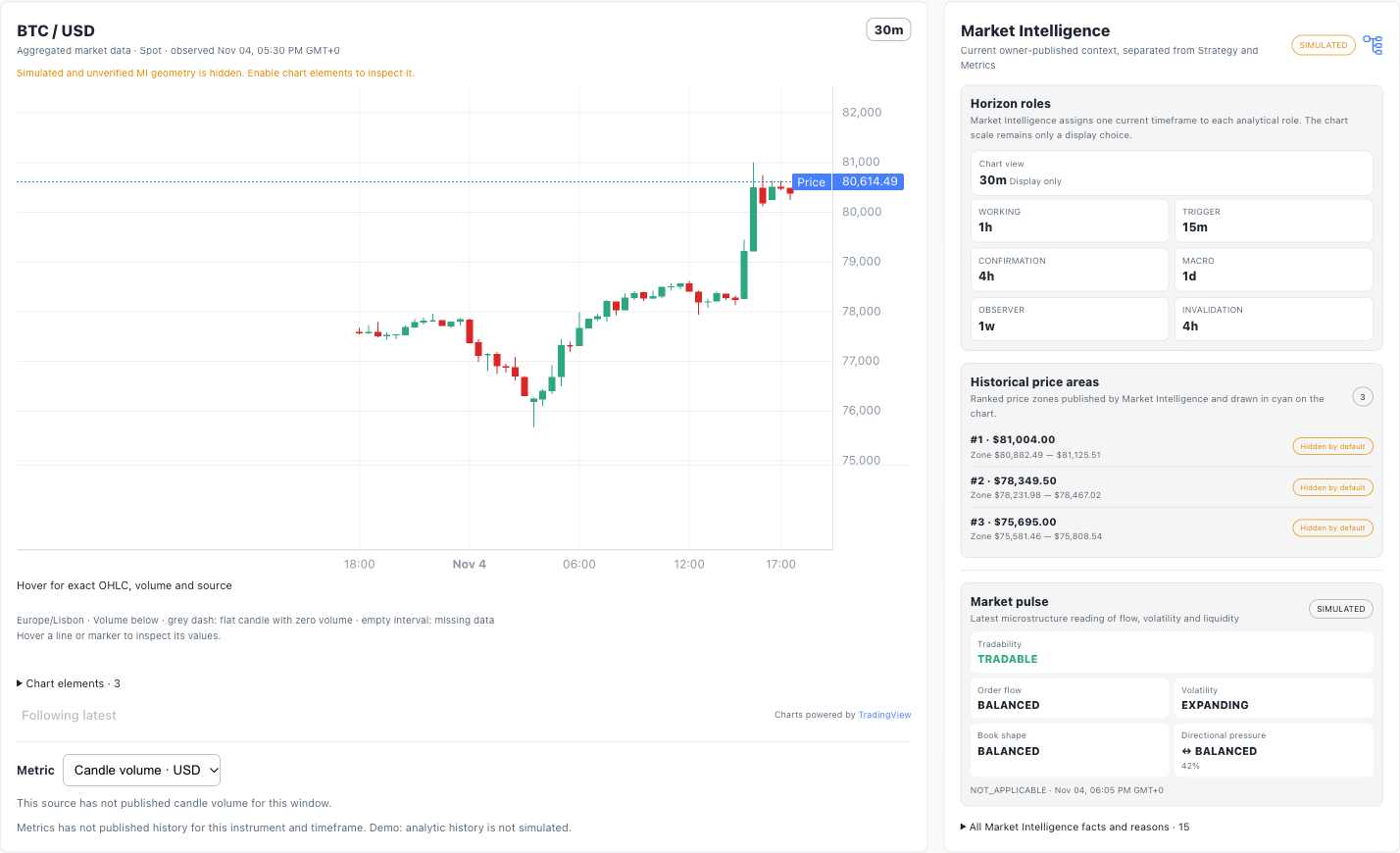 Demo interface
Timeframe roles, price areas and market context beside the chart.
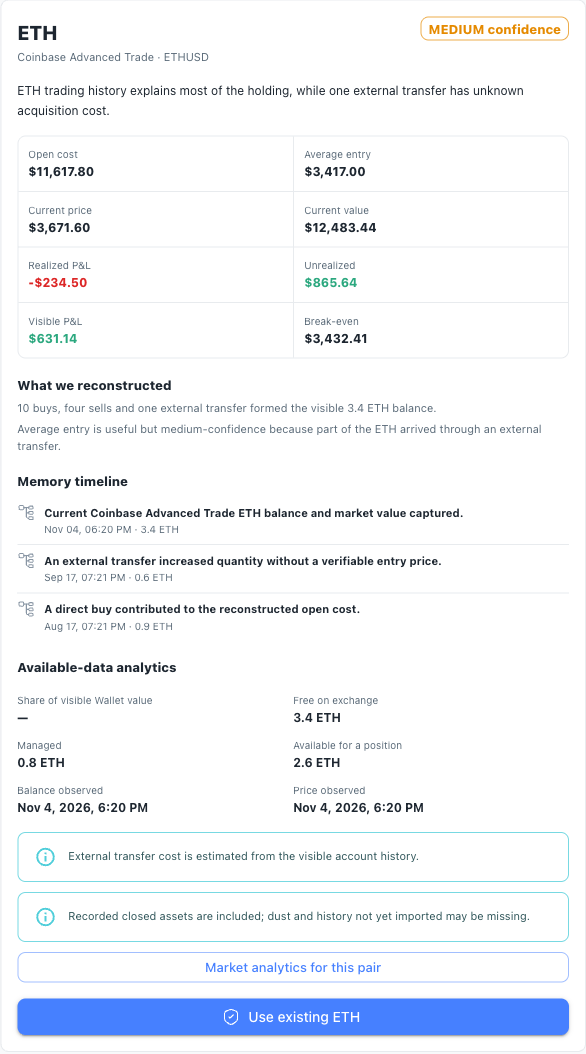
See a holding’s cost, result and the history behind them.
Keep positions across Wallets, fills, fees and lessons together.
Interface previews use simulated Demo data. Management follows the approved plan; available tools depend on your account and data.
Recorded balances, history imports and Portfolio snapshots across Wallets. Know which account and records support the numbers you are using.
In the terminal: Wallet · Trader Profile → Sources and history import. Connection, history import and valuation are separate steps. Coverage remains visible.
Explore this featureSix timeframe roles and ranked historical price areas with defined bounds. Inspect the analytical scale and exact price areas around your instrument.
In the terminal: Market Navigator → Market Intelligence. Current inspected preview uses SIMULATED MI data. Check the published source state.
Explore this featureMarket Pulse, chart metrics, strategy context and published calendar events. Read flow, volatility, liquidity and timing beside the selected instrument.
In the terminal: Market Navigator. Each reading has its own coverage. Metrics need the required history.
Explore this featureCost basis, P&L, break-even, confidence and the holding’s timeline. Understand what remains, its estimated cost and the gaps behind the estimate.
In the terminal: Asset Intelligence → select an asset. Missing acquisition cost can leave P&L and break-even unavailable.
Explore this featureEligible strategies, direction, pair, allocation and strategy-specific parameters. Give the position a repeatable approach and a defined allocation.
In the terminal: New Position → strategy and allocation. Choices depend on the strategy, instrument, Wallet and current access.
Explore this featureReviewed conditions, branches, actions and readiness checks. See what may happen before authorizing the position’s workflow.
In the terminal: New Position → review the plan. Changing the setup requires a fresh review before launch.
Explore this featureA planned sale of owned inventory followed by a proceeds-funded buyback. Prepare for a price decline using owned Spot inventory and a defined buyback budget.
In the terminal: New Position → eligible sell-first setup. Owned inventory, with no borrowing. Buyback uses the position’s proceeds; returned quantity may be smaller.
Explore this featureA simulated position workflow with its plan, actions and review. Try the management process and inspect its records using simulated funds.
In the terminal: New Position → eligible Paper mode. Available where your account and Wallet permit it. Public Demo uses a curated sample account.
Explore this featureProtection, trailing and partial exits where the approved plan provides them. Keep management responses tied to the rules you reviewed.
In the terminal: Positions → plan and management. Strategy-specific. Local monitoring needs a running terminal, fresh inputs and execution access.
Explore this featureAvailable pause/resume, exposure-reduction and close workflows with review. Change the position deliberately and inspect the scope of the requested action.
In the terminal: Positions → management controls. The current position state and available actions determine what can be requested.
Explore this featureThe affected scope, what happened, system response and who acts next. Find the position or Wallet that needs a decision and open its next step.
In the terminal: Alerts → selected situation. Shows recorded attention items. Review the affected position before confirming an action.
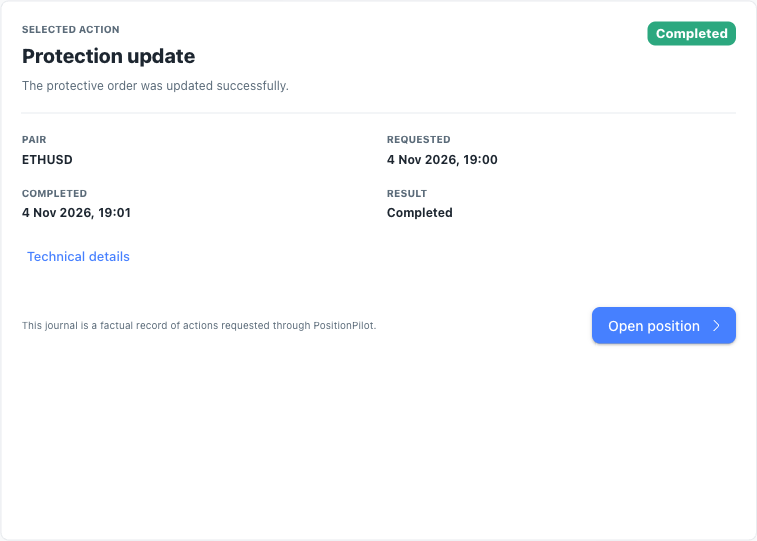
Explore this featureCommand Journal statuses and Telemetry facts linked to their context. Follow a requested action’s result, then inspect execution in the position.
In the terminal: Command Journal · Telemetry. These views use recorded outcomes. Unavailable records remain unavailable.
Explore this feature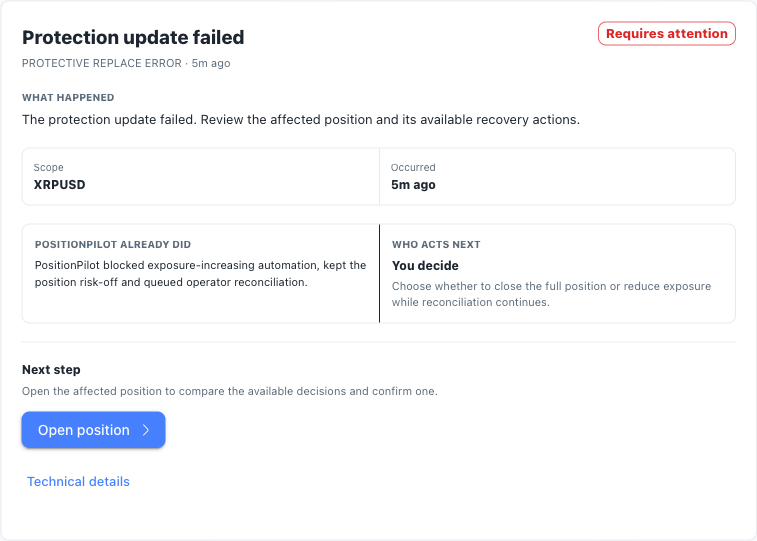
Positions with strategy, state, entry/exit fills, net PnL and fees. Find the position across connected accounts and keep its trading context attached.
In the terminal: Positions → Trading journal. Describes managed positions. Imported exchange executions are also available in Account Memory.
Explore this featureFee-aware outcome, plan vs actual, decision episodes and execution records. Examine the approved rule, what happened and the costs behind the result.
In the terminal: Review → select a closed position. Historical plan maps, snapshots and valuations are shown where recorded.
Explore this featureNotes, tags, next-time changes and a fresh plan based on the reviewed position. Turn a review into a concrete question to test in the next plan.
In the terminal: Review → Your learning loop. A similar plan needs new funding and another review before launch.
Explore this featureEntry/exit patterns, supporting trades and available result comparisons. Explore recurring behaviour and relate known results to your intended method.
In the terminal: Trader Profile. Uses imported history and explicit method context. Missing portions remain visible.
Explore this featureConnection, history import and valuation are separate steps. Check coverage and source times. Optional deeper analysis jobs are offered according to your access, with scope and any credit estimate shown before confirmation.
Market Intelligence in the inspected preview uses SIMULATED data. Paper mode, strategies, venues and actions follow current access and readiness.
The current terminal offering sends trading requests from your device. Local monitoring needs a running terminal. Stopping it does not cancel orders already accepted by the exchange.
Read the execution modelNews and narrative context, and broader strategy benchmarks, remain development directions. Current Trader Profile comparisons are part of the workflow described above.